Your 99Plugs updates arrive in the WordPress dashboard like any other update, and most people never need anything else. The Update Manager has its own Plugins tab as well, and it is worth knowing what is on it.
Find it at Tools → 99Plugs → Plugins.
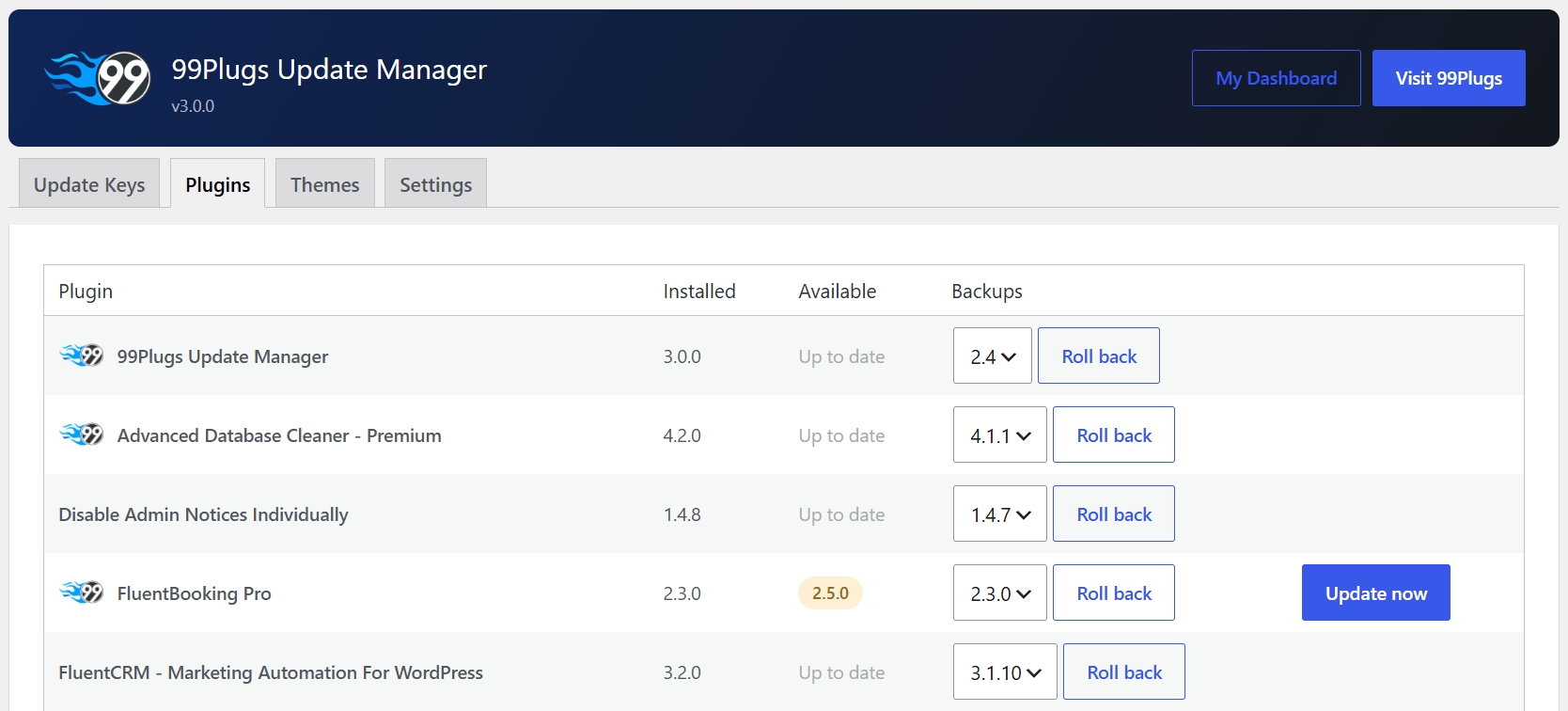
Update now
Every plugin with a new version waiting shows a button. When the update is coming from us, that button says Update now and installs it there and then.
It is the fastest way to push one plugin up to date when the other twelve can wait. Same install WordPress would do, same files, same place, and your pre-update backup is still taken.
Check again
Version information is cached for a few hours, so a release that landed twenty minutes ago will not appear straight away.
Check again clears that and asks the store fresh. Try this first whenever you are expecting something recent, before assuming anything is wrong.
Nothing offered against a plugin at all?
An item with no update button and no version in the Available column is usually a licensing answer rather than a fault.
The Update Manager only offers an update when your key entitles you to the download. No key, a key that never activated, or an expired one, and the row goes quiet rather than showing you something you cannot install.
Check the Update Keys tab. A status of Active against the right item name is what you are looking for. My updates are not showing up in WordPress works through the rest.
If your key is Active and the plugin still shows nothing, read on.
Why you stop seeing the developer’s own update notices
Premium plugins usually ship with their own updater built in, pointed at the developer’s servers. Left alone it tells you about versions you cannot install without a subscription direct from the developer, which is a notice that can do nothing for you.
The Update Manager tells those updaters to stand down for the products it manages. The same job runs on the free WordPress.org plugins that have to sit underneath a premium add-on for its features to work. Those share a slug with the public version, so WordPress would offer you the public copy as an update and take the premium features with it. That side is handled reliably and you will not see it happen.
You do not switch any of this on and there is nothing to configure.
The rare one: when a plugin’s own updater wins
A small number of premium plugins ignore that and report in anyway.
WordPress keeps one list of available updates, and the last updater to write to it wins. When a plugin’s own updater gets the last word, ours is the one that goes missing. It shows up in one of two ways.
You see nothing at all. The plugin checked with the developer and came back with “no update available,” either because there genuinely is not one or because you do not hold a subscription there. It writes that answer into the list. We have a new version ready for you, and you never hear about it.
You see an update that will not install. The plugin found a newer version at the developer’s end and wrote that into the list instead of ours. Click it and the download is refused, because you do not have an active subscription with the developer. There is often a line beside it telling you to activate the plugin to enable updates.
Neither one can put the developer’s copy on your site. The download is refused, so nothing installs and nothing gets overwritten. It is a notice you cannot act on, not a risk to what you have.
What to do about it
Go to Tools → 99Plugs → Plugins. This tab shows what we have available for you regardless of what won the argument in the dashboard. If there is an update, it is listed here. Click Update now.
This is uncommon, and it is most likely on something recently added to the catalogue. The ones customers have told us about on products we have carried a while are already dealt with. A plugin we have not worked with before is where a new one would turn up.
So open a ticket and name the plugin. We fix these one at a time, and we only find out about them because somebody says so.
Themes
Update now is for plugins. Themes update through the WordPress dashboard, and the Themes tab lists them with their backups.
Related: Backups and rollback and Update failed, or the new version is not there yet.