Every WordPress user has had this happen. A plugin updates, something on the site stops working, and now you are trying to remember which version you were running an hour ago.
The Update Manager keeps a copy so you do not have to remember.
It backs up everything, not only our stuff
Before any plugin or theme on your site updates, the Update Manager zips the version you are running. That includes plugins that have nothing to do with us. If WordPress is installing it, the old copy gets saved first.
It is on out of the box. Three versions are kept per plugin and per theme, and older ones are deleted for you.
Rolling back
- In WordPress, go to Tools → 99Plugs.
- Open the Plugins tab, or Themes for a theme.
- Find the item. The Backups column holds every version it saved, newest first.
- Pick the version you want and click Roll back.
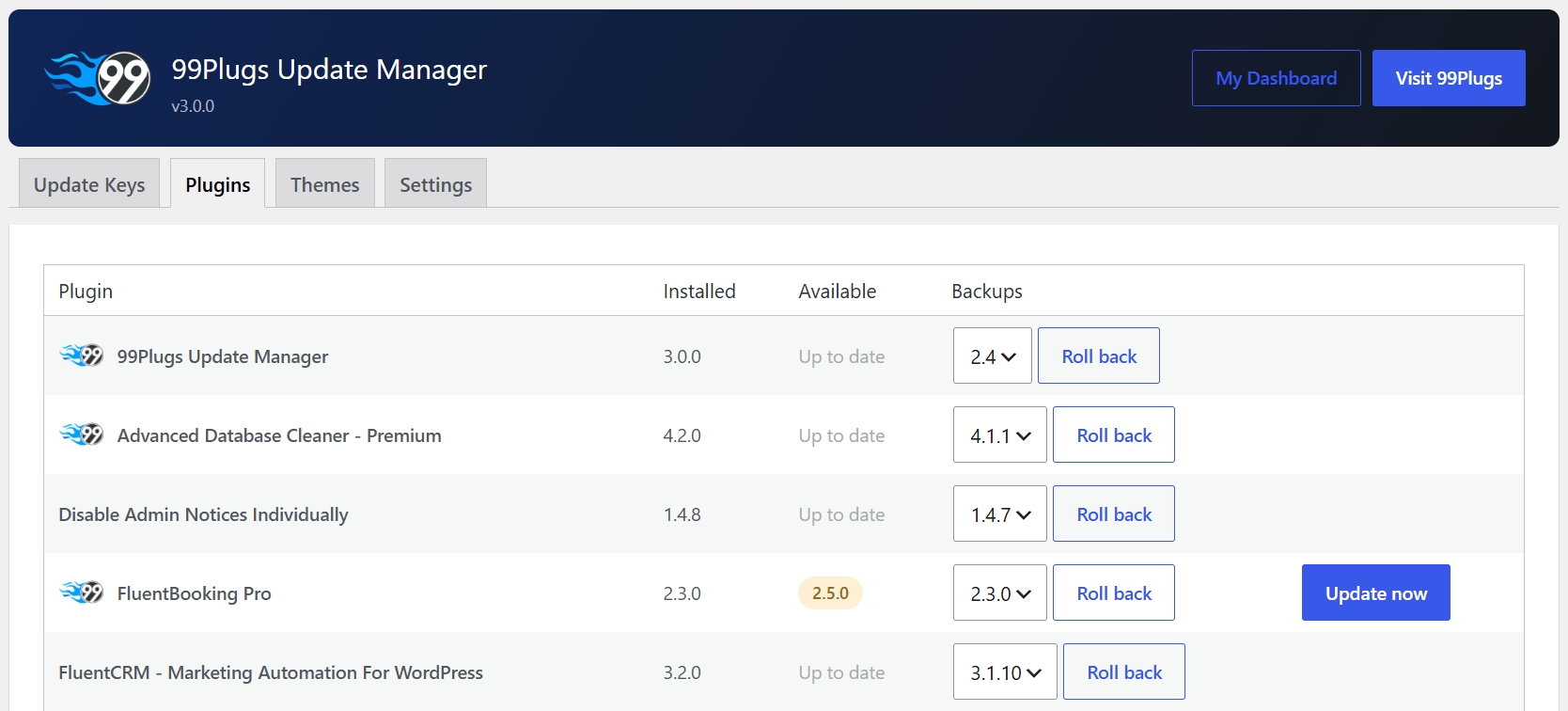
The Update Manager deactivates the plugin, puts the old files back, and reactivates it. For a theme, it switches to your default theme, restores, and switches back. The site is running again while you work out what happened.
Then tell us. A plugin that breaks on update is something we want to know about, and opening a ticket is how it gets looked at.
Changing the settings
Tools → 99Plugs → Settings.
- Backups. On by default. The checkbox turns the whole thing off.
- Backups to keep. Three by default, anywhere from one to five, counted per plugin and per theme.
Backups live in wp-content/99backup. They are ordinary zip files, so you can download one over SFTP if you ever want it outside WordPress.
Two things worth knowing
It backs up plugin and theme files. It is not a backup of your site. Your database, your uploads, your content and your settings are outside what the Update Manager touches, and a rollback does not bring any of them back. Keep a real site backup running as well. That is true of every site on every host, with or without us.
A backup that cannot be made never blocks an update. Backups need the ZipArchive extension in PHP. Almost every host has it. If yours does not, updates carry on working normally and the Backups column stays empty. If you see None yet against an item you have already updated, that is the thing to ask your host about.
When you delete the plugin
Removing the Update Manager through WordPress deletes the backup folder with it. If you are moving hosts or clearing a site down and you want those zips, copy wp-content/99backup somewhere else first.
Related: Update failed, or the new version is not there yet and My updates are not showing up in WordPress.